The Handoff
Find an accomplice
Prompt
BRIEF · PASTE AS YOUR PROMPT IN THE INVIDEO EDITOR PROJECT: Reference-matched, beat-synced masked-transition edit I have uploaded: 1. REFERENCE VIDEO: the guide for music, shot rhythm, cut points, jump cuts, speed changes, and masked transitions. Use its audio as the soundtrack unless I supply a separate track. 2. SOURCE CLIPS: my footage for the new edit. Use only these clips for the picture. DELIVERY Create one finished video at [ASPECT RATIO], [RESOLUTION], and [FPS]. Match the reference’s duration and musical timing unless I specify otherwise. Adapt the composition to my footage without awkwardly cropping the main person. EDITING DIRECTION First analyze the reference frame by frame. Map every shot, cut, beat, masked hold, full-shot reveal, jump cut, and speed change. Then inspect my source clips and choose the clearest person and strongest action for each shot. Do this analysis internally and proceed directly to the edit. Do not stop for shot-by-shot approval. Match the reference’s cut rhythm and energy. Use hard cuts, not dissolves or generic transition presets. At each masked transition, show ONLY the person from the incoming shot over the outgoing shot for the reference’s hold duration. The outgoing shot must remain visible everywhere outside that person. Then hard-cut to the full incoming shot, with the person in the same position and at the same scale. The cutout must use the actual person photographed in my incoming clip, not a generated replacement. Use a moving alpha matte. If video background removal loses transparency, extract the exact incoming source frames for the short hold, make transparent person-only cutouts frame by frame, and place them back in their correct order. Check source-frame numbers against the edit timeline so the person’s motion continues naturally into the full-shot reveal. Good-enough edges are acceptable for these brief holds. Prioritize a recognizable, moving person and genuinely transparent surroundings. If a club or another thin, fast-moving object breaks up, leave that object out of the cutout. Change to a nearby moment in the SAME source clip only if the person cannot be isolated at the chosen moment; keep the masked hold and full-shot reveal continuous. Recreate the reference’s jump-cut positions and punch-ins, stepping tighter without easing. Match its speed-up windows and return to normal speed on the specified cuts. Keep one consistent grade across the entire piece. QUALITY CHECK BEFORE DELIVERY Render the complete video and inspect the rendered frames, not just the edit timeline. Confirm that every requested transition contains a visible incoming person over a still-visible outgoing scene, with no opaque rectangle or black background. Check that each full-shot reveal matches the cutout’s position and motion, all cuts hit the music, and the soundtrack plays without gaps. Fix failed transitions before delivering. Deliver the finished video, not just an edit plan. In your final reply, briefly list any objects omitted from masks, any same-clip moments swapped, and any effect you could not complete. Never describe an opaque overlay as a completed mask. MY SPECIFIC SETTINGS Aspect ratio: [ ] Resolution: [ ] Frame rate: [ ] Runtime: [match reference / specify] On-screen title or text: [none / exact text] Number of masked transitions: [match reference / specify] Anything that must remain in the cut: [ ]
Tutorial
DENIZ AKKABAK · INVIDEO EDITOR TUTORIAL · @DENIZ.AKKABAK
MADE IN INVIDEO · invideo.io/i/DENIZ-ig
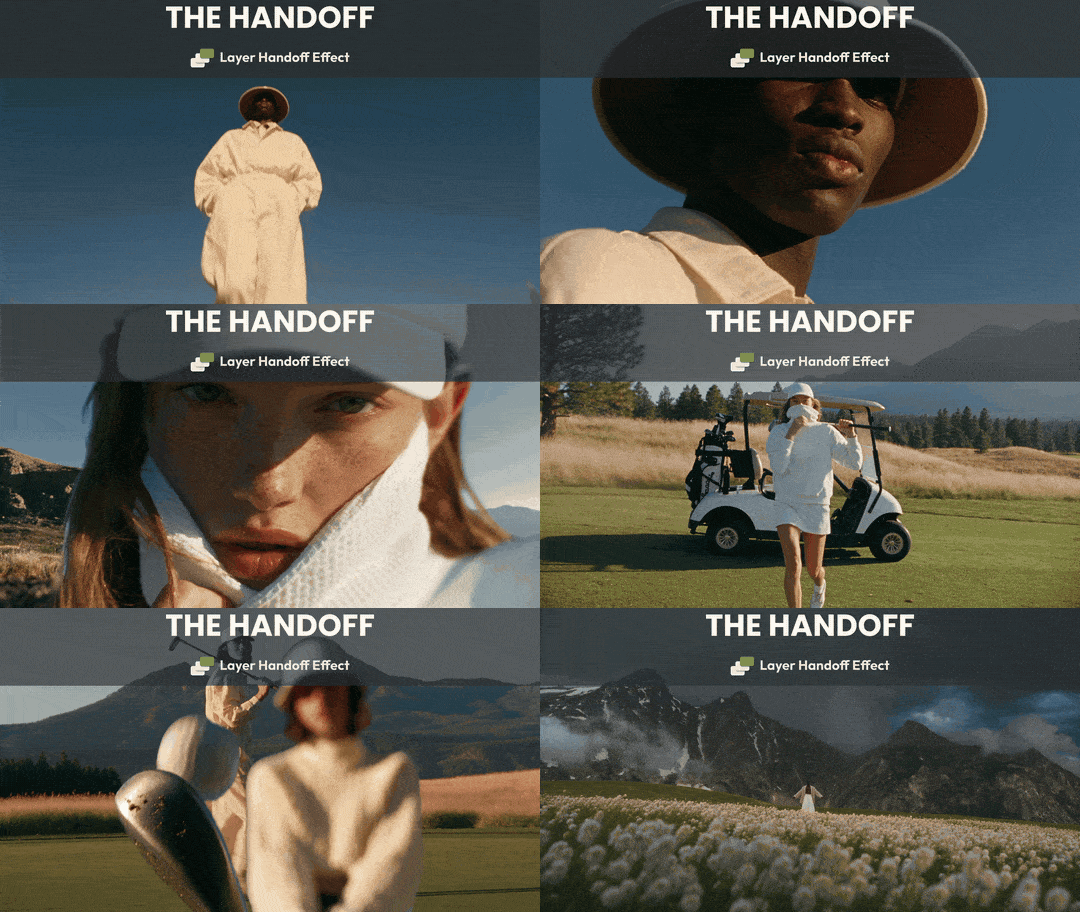
The Handoff
How one written brief turns a folder of raw clips and a music track into a beat-synced fashion edit — where every incoming person steps into frame a beat before their shot does.
A TUTORIAL BY DENIZ AKKABAK · @DENIZ.AKKABAK
TOOL INVIDEO EDITOR · AGENT TWO ULTRA FORMAT 16:9 · 1080P · 24 FPS GENRE FASHION EDIT
There is a transition editors love and dread in equal measure. For a handful of frames, only the person from the next shot appears — cut out clean, floating over the shot that is still playing — and then a hard cut reveals their whole world, with them standing in exactly the same spot. The eye locks onto the person, so the cut lands like a baton pass instead of a jump. That is the Layer Handoff.
By hand, it means rotoscoping every hold frame by frame and lining each cutout up against its reveal. Here, it is a brief. You hand the invideo editor your raw clips and your music, paste one carefully written document where a prompt would normally go, and its agent does the rest — the rhythm map, the cutouts, the beat sync and a self-check on rendered frames — then hands back a timeline you can still edit.
THE PIPELINE AT A GLANCE
- 01
Load the raw material
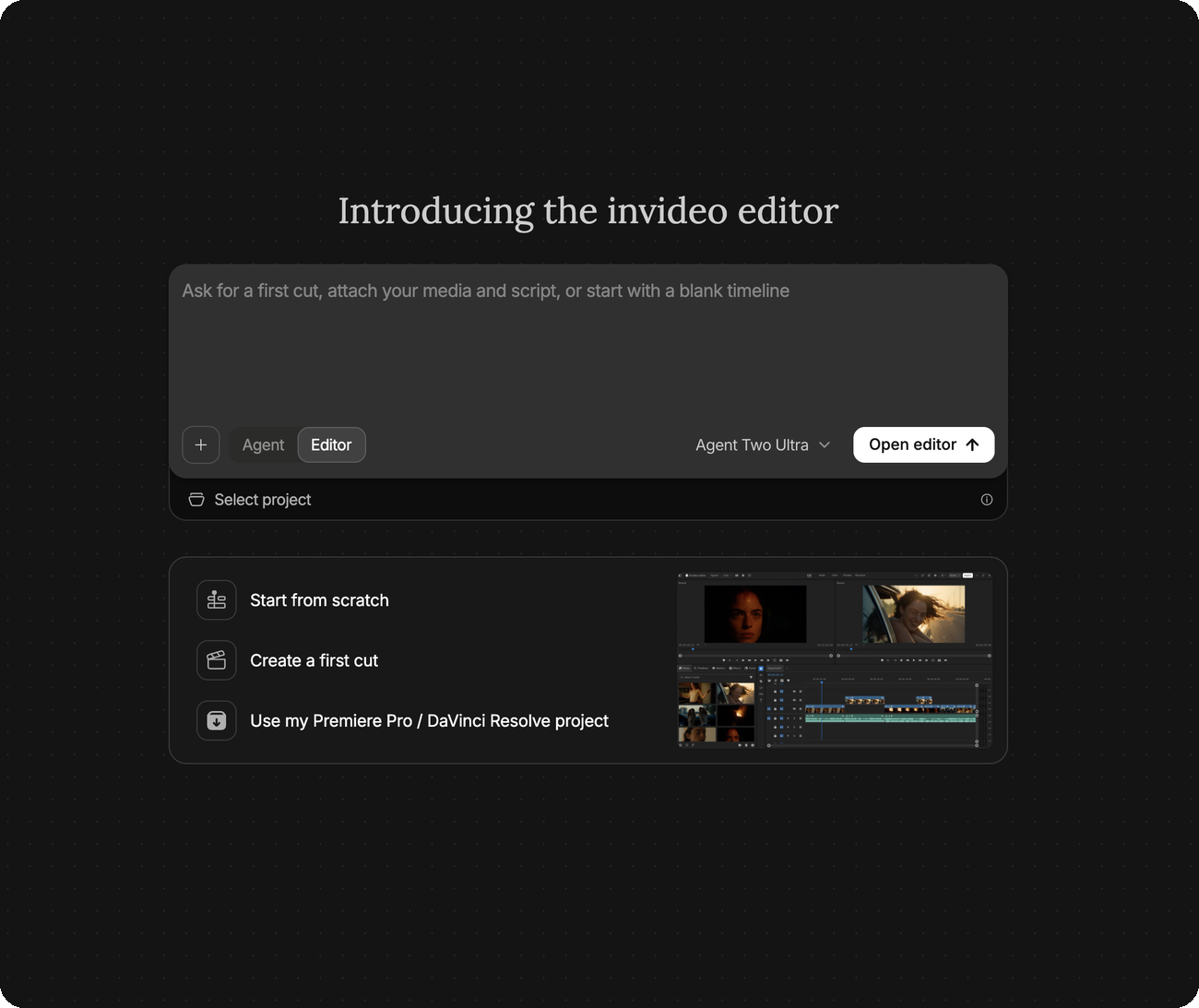
Open the invideo editor, set the toggle to Editor, pick Agent Two Ultra, and attach your raw clips together with the music — or the reference video whose track and rhythm you want matched.
- 02
Paste the brief
The brief replaces the usual one-line prompt. It defines the effect as geometry, locks the rhythm to the music, and forces the agent to prove every transition on rendered frames.
- 03
Read the timeline
The agent returns the rendered cut plus an editable timeline — main video on V1, the handoff cutouts stacked on V2, the music on A1.
STEP 01 — INVIDEO EDITOR
Setting Up the invideo Editor
Everything starts on the editor’s start screen, and two small controls decide the job. The toggle under the prompt bar must read Editor, not Agent — you are bringing your own media, not asking for footage to be generated. And the model picker on the right should read Agent Two Ultra, the setup this cut was made with. An effect this fiddly rewards the strongest agent available.
THE START SCREEN — TWO CHECKS
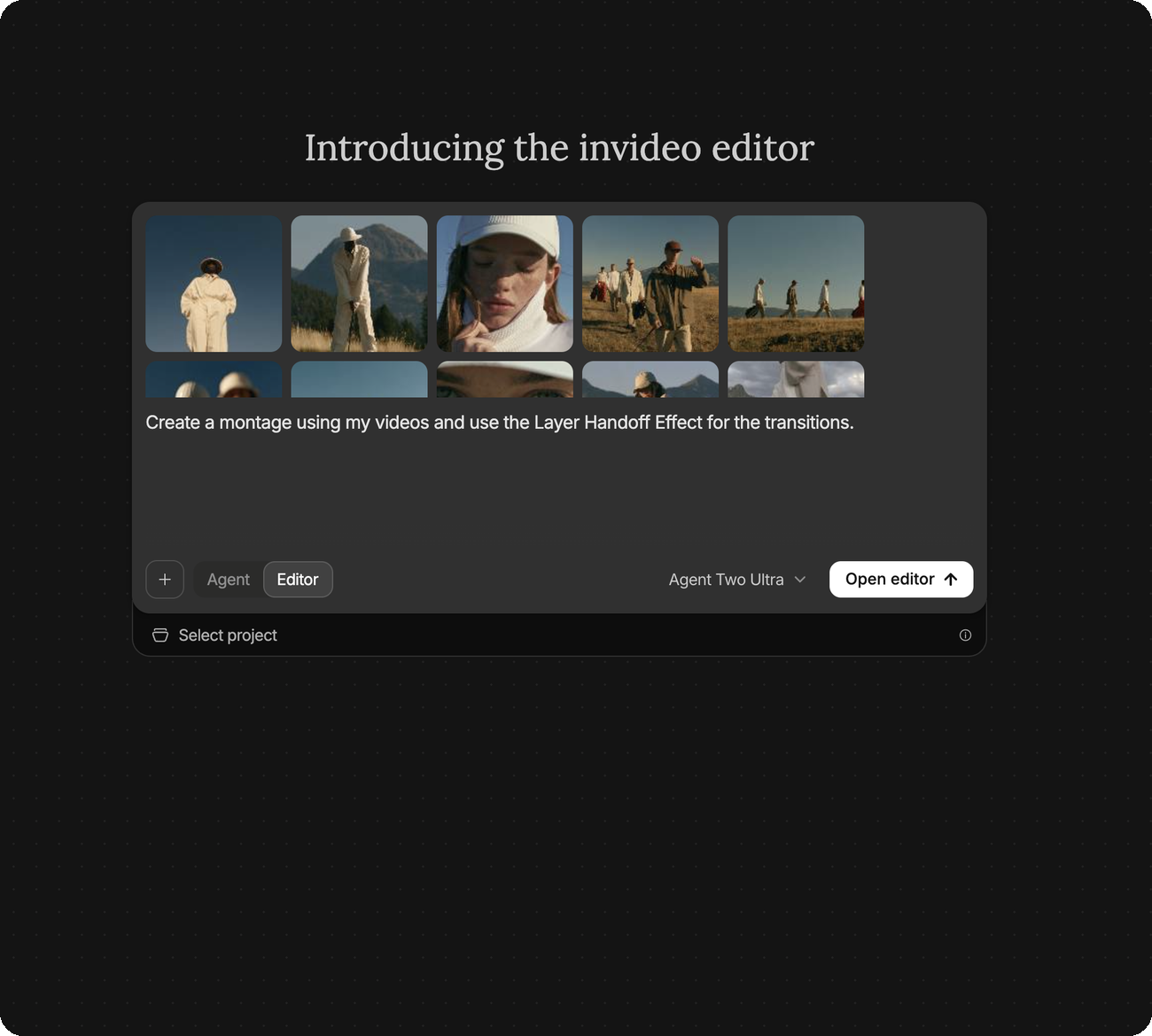
INPUTS — WHAT GOES INTO THE PROMPT BAR
- 1
The reference
The cut whose timing you want mirrored — its music, shot rhythm, jump cuts, speed changes and masked holds. The brief calls it REFERENCE VIDEO, and its audio becomes the soundtrack.
- 2
Your source clips
Your raw footage, and the only picture source the agent may use. This film was cut from a golf-course fashion shoot — cream linen, red jackets, alpine sky.
- 3
The music
The track the whole edit is timed to. If you attach it as a separate file, the brief tells the agent to use it instead of the reference audio.
STEP 02 — THE BRIEF
The Brief — Paste It Instead of a Prompt
This is where the heavy lifting happens. A one-liner like “use the Layer Handoff Effect for the transitions” asks the agent to guess what the effect even is. The brief below never leans on the name. It describes the handoff as a sequence of frames, tells the agent how to build it, what to do when its tools fail, and how to prove it worked before it is allowed to deliver. Paste it whole, then fill in the settings block at the bottom — the brackets are the only lines you touch. Here is what went into them for this cut.
SETTINGS USED FOR THIS CUT
| ASPECT RATIO | 16:9 |
|---|---|
| RESOLUTION | 1920 × 1080 |
| FRAME RATE | 24 fps |
| RUNTIME | ≈ 16 s — the length of the track |
| ON-SCREEN TITLE OR TEXT | None |
| MASKED TRANSITIONS | 10 |
| MODEL | Agent Two Ultra |
Values read off the finished project — the Inspector’s format panel, the ten stacks on V2 and the rendered file.
BRIEF — COPY EXACTLY
BRIEF · PASTE AS YOUR PROMPT IN THE INVIDEO EDITOR
PROJECT: Reference-matched, beat-synced masked-transition edit
I have uploaded:
1. REFERENCE VIDEO: the guide for music, shot rhythm, cut points, jump cuts, speed changes, and masked transitions. Use its audio as the soundtrack unless I supply a separate track.
2. SOURCE CLIPS: my footage for the new edit. Use only these clips for the picture.
DELIVERY
Create one finished video at [ASPECT RATIO], [RESOLUTION], and [FPS]. Match the reference’s duration and musical timing unless I specify otherwise. Adapt the composition to my footage without awkwardly cropping the main person.
EDITING DIRECTION
First analyze the reference frame by frame. Map every shot, cut, beat, masked hold, full-shot reveal, jump cut, and speed change. Then inspect my source clips and choose the clearest person and strongest action for each shot. Do this analysis internally and proceed directly to the edit. Do not stop for shot-by-shot approval.
Match the reference’s cut rhythm and energy. Use hard cuts, not dissolves or generic transition presets. At each masked transition, show ONLY the person from the incoming shot over the outgoing shot for the reference’s hold duration. The outgoing shot must remain visible everywhere outside that person. Then hard-cut to the full incoming shot, with the person in the same position and at the same scale.
The cutout must use the actual person photographed in my incoming clip, not a generated replacement. Use a moving alpha matte. If video background removal loses transparency, extract the exact incoming source frames for the short hold, make transparent person-only cutouts frame by frame, and place them back in their correct order. Check source-frame numbers against the edit timeline so the person’s motion continues naturally into the full-shot reveal.
Good-enough edges are acceptable for these brief holds. Prioritize a recognizable, moving person and genuinely transparent surroundings. If a club or another thin, fast-moving object breaks up, leave that object out of the cutout. Change to a nearby moment in the SAME source clip only if the person cannot be isolated at the chosen moment; keep the masked hold and full-shot reveal continuous.
Recreate the reference’s jump-cut positions and punch-ins, stepping tighter without easing. Match its speed-up windows and return to normal speed on the specified cuts. Keep one consistent grade across the entire piece.
QUALITY CHECK BEFORE DELIVERY
Render the complete video and inspect the rendered frames, not just the edit timeline. Confirm that every requested transition contains a visible incoming person over a still-visible outgoing scene, with no opaque rectangle or black background. Check that each full-shot reveal matches the cutout’s position and motion, all cuts hit the music, and the soundtrack plays without gaps. Fix failed transitions before delivering.
Deliver the finished video, not just an edit plan. In your final reply, briefly list any objects omitted from masks, any same-clip moments swapped, and any effect you could not complete. Never describe an opaque overlay as a completed mask.
MY SPECIFIC SETTINGS
Aspect ratio: [ ]
Resolution: [ ]
Frame rate: [ ]
Runtime: [match reference / specify]
On-screen title or text: [none / exact text]
Number of masked transitions: [match reference / specify]
Anything that must remain in the cut: [ ]
STEP 03 — AGENT TWO ULTRA
The Agent at Work
Once the brief lands, the agent works inside a full editing workspace — source and program monitors, an Inspector, a media bin, a multitrack timeline — and reports as it goes in the chat panel on the left. Keep an eye on that panel: it is where the brief’s fallback clause shows up in practice.
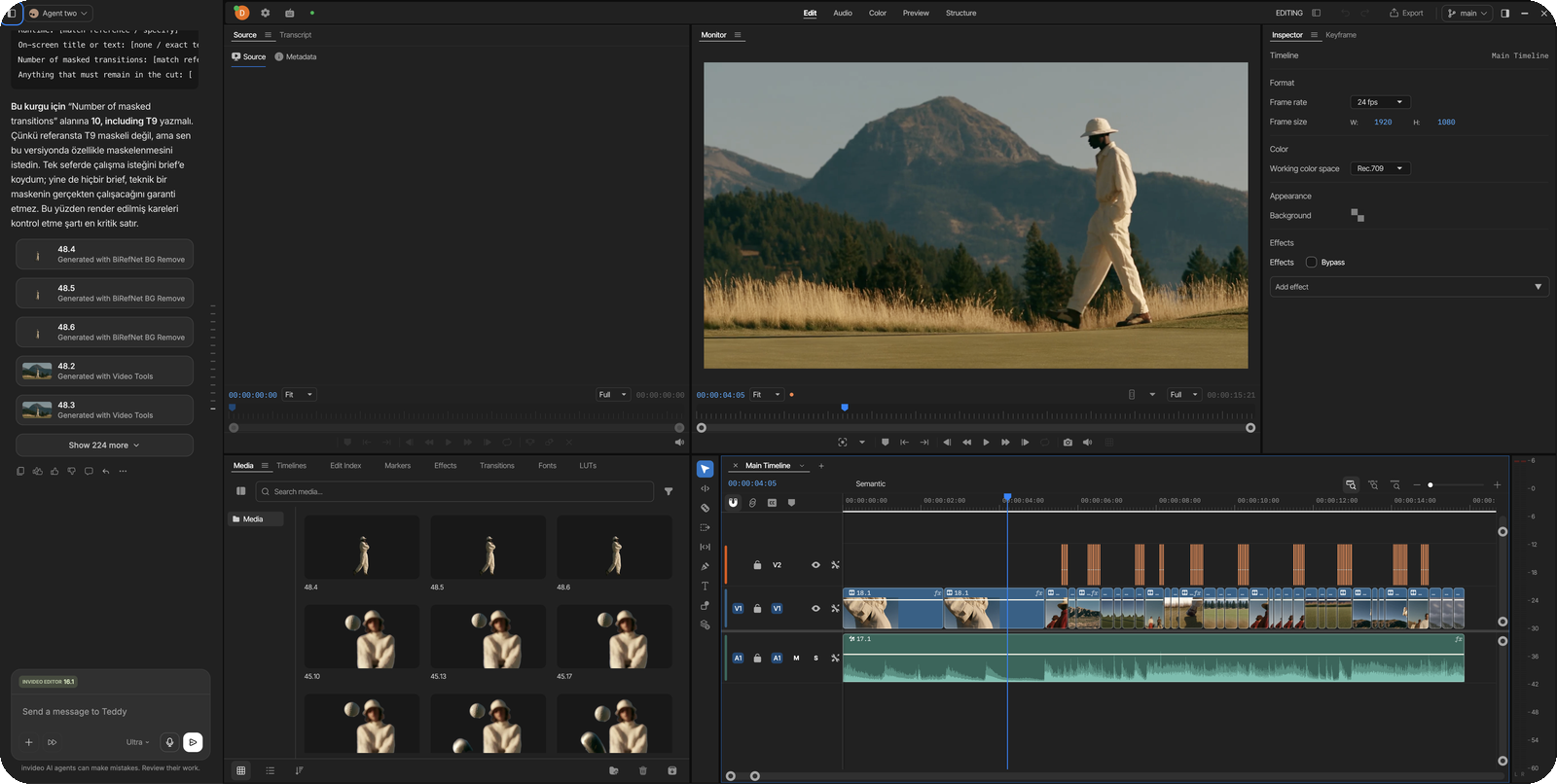
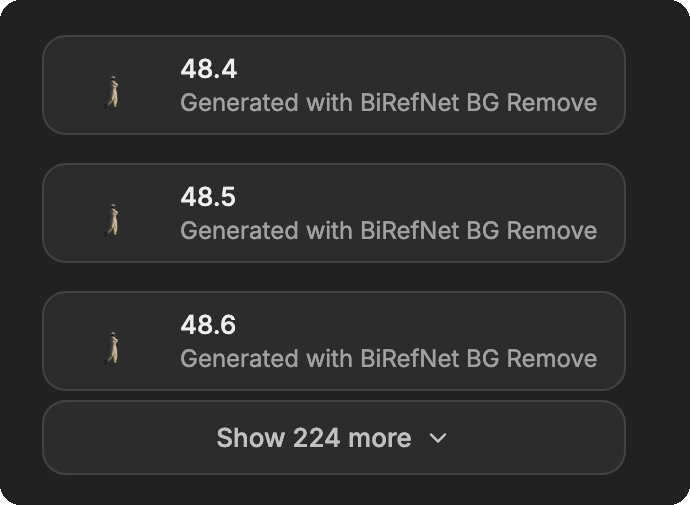
THE FALLBACK, IN ACTION
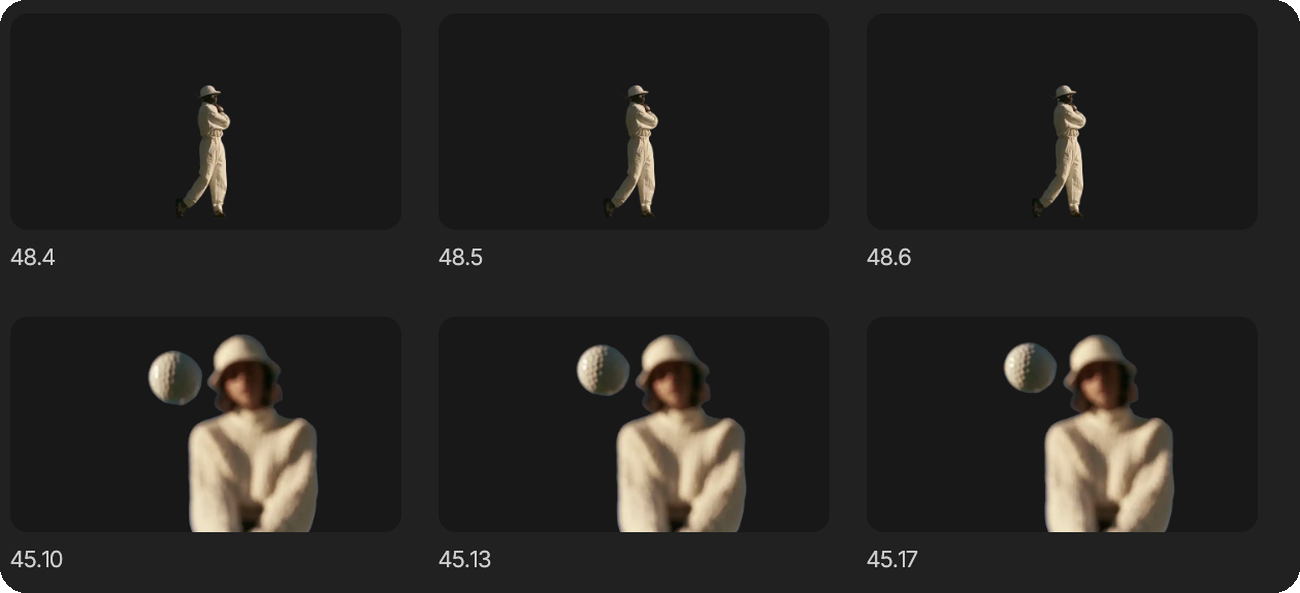
Each card is a single frame of an incoming person, pulled from its source clip and cut free with BiRefNet background removal — 48.4, 48.5 and 48.6 are consecutive frames of the same walk. That is the brief’s “make transparent person-only cutouts frame by frame” clause, executed. The collapsed list hides the other two hundred-odd assets the agent generated along the way.
STEP 04 — THE TIMELINE
Reading the Timeline
What comes back is not a flattened render — it is a timeline you can open, scrub and change. Three lanes tell the whole story. V1 carries the main video: the full shots, cut hard on the beat. V2 carries the Layer Handoff Effect — each orange stack is a run of single-frame cutouts sitting directly above the cut it announces. A1 carries the music, one continuous clip under everything.
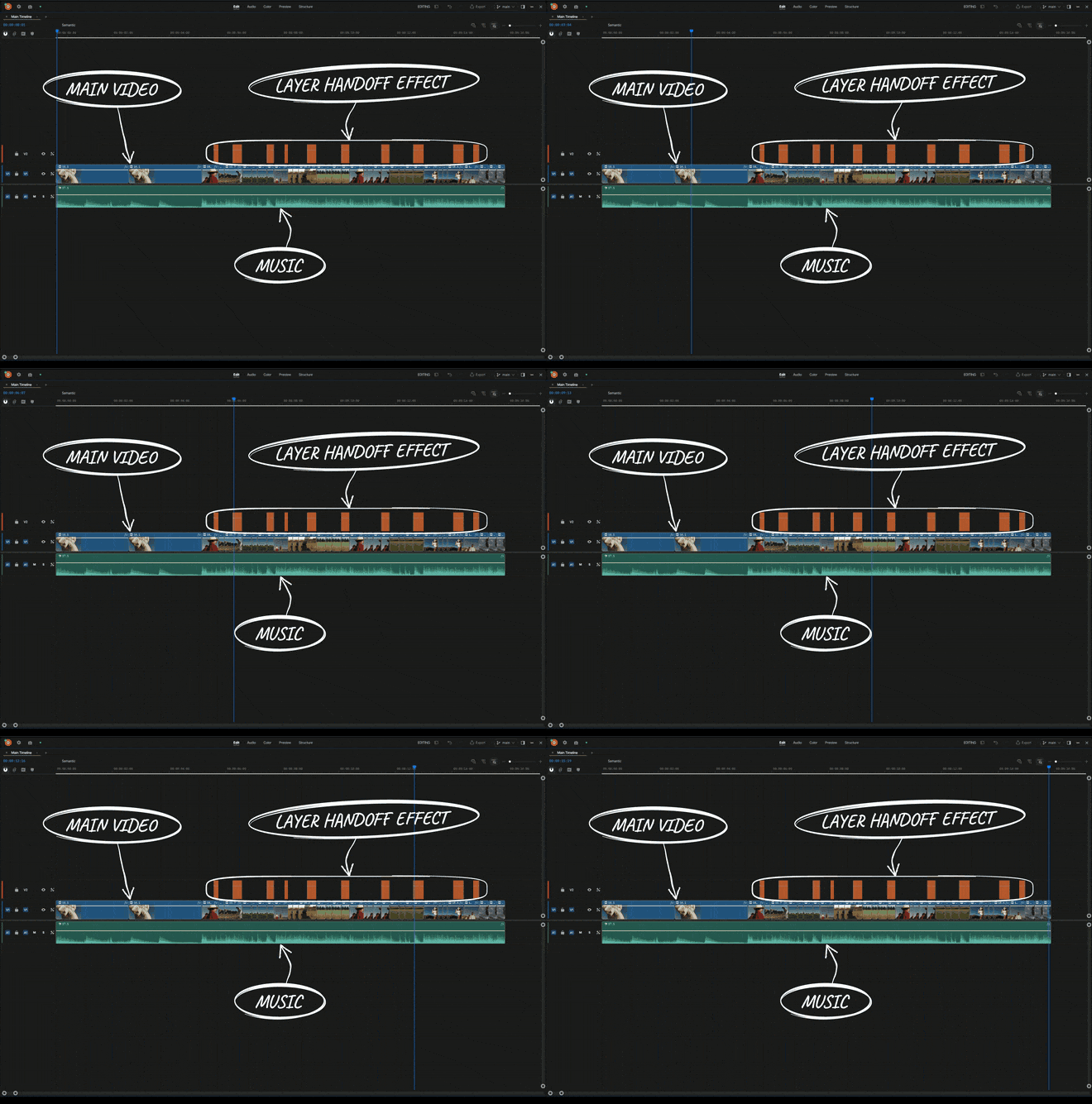
Count the stacks: ten. That is the brief’s “Number of masked transitions” made visible, and the fastest audit of the agent’s work before you watch a single frame. A stack that is missing — or a lane that holds one solid block instead of a cluster of thin slices — marks the transition to inspect first.
STEP 05
Anatomy — Why the Brief Works
- 1
The contract
DELIVERY opens with “Create one finished video” and the brief closes on “Deliver the finished video, not just an edit plan.” Agents love to hand back a plan; bookending the brief with the deliverable leaves no room for one.
- 2
The reference as a score
“First analyze the reference frame by frame” — every cut, beat, hold, jump cut and speed change — then “Do not stop for shot-by-shot approval.” Hard cuts only, “not dissolves or generic transition presets,” and punch-ins “stepping tighter without easing.” One message, one finished cut.
- 3
The effect as geometry
The brief never trusts the name. It spells the handoff out: “show ONLY the person from the incoming shot over the outgoing shot,” the outgoing shot “visible everywhere outside that person,” then the reveal “in the same position and at the same scale.” That last clause is why the cut reads as a match, not a jump.
- 4
Real pixels only
“The cutout must use the actual person photographed in my incoming clip, not a generated replacement. Use a moving alpha matte.” Without it, an AI editor may happily redraw a lookalike — and the continuity into the reveal dies.
- 5
The fallback path
“If video background removal loses transparency, extract the exact incoming source frames” and cut them out “frame by frame.” That is the clause firing in Step 03. “Check source-frame numbers against the edit timeline” keeps the cutout’s motion flowing straight into the reveal.
- 6
Permission to be imperfect
“Good-enough edges are acceptable,” a club that breaks up gets left out, and a moment may only be swapped within “the SAME source clip.” Ranked priorities stop the agent from stalling on a perfect matte it will never get.
- 7
The insurance
QUALITY CHECK makes the agent “inspect the rendered frames, not just the edit timeline” and hunt for any “opaque rectangle or black background.” The final line — “Never describe an opaque overlay as a completed mask” — outlaws the one false success that would otherwise slip through.
THE RESULT
Output — Ten Handoffs, One Track

Check it against the brief’s own QUALITY CHECK. At every handoff, the incoming golfer should appear alone over a still-visible outgoing scene — no grey box, no black rectangle. The reveal should put them back exactly where the cutout stood, mid-stride, same scale. And every cut should land on the music. Ten stacks on V2, ten clean passes on screen: that is the whole audit.

DON’T NAME THE EFFECT. DESCRIBE IT.
An agent can’t guess an effect. It can follow a description down to the frame.
Swap the golf course for a runway, a skate park or a wedding — swap the track, the clips, the transition count. The skeleton carries any masked-transition edit: define the effect as geometry, give the agent a way out when its tools fail, and make it prove the result on rendered frames before it is allowed to say done.
Everything in this guide ran inside the invideo editor — an agentic editor that takes plain-language direction and does its work on an editable timeline you stay in control of. It’s free to start.
WRITTEN, DIRECTED & PROMPTED BY DENIZ AKKABAK · @DENIZ.AKKABAK